2 added lines, 1 removed line and 4 matched lines. The status edit is a removal plus an addition.
Open the prepared example ↗A document review needs a precise question. Did a line change, did an item move, or did someone only add indentation? This walkthrough compares two fictional launch checklists and then changes the matching settings so you can see which differences those settings hide.
Start with two small versions
BEFORE
Launch checklist
Owner: Alex
Status: draft
Review copy
Publish on Friday

AFTER
Launch checklist
Owner: Alex
Status: approved
Review copy
Check mobile layout
Publish on Friday
Load the checklist example in Text Compare. Leave all three matching options off. Select Compare text. The expected result is two added lines, one removed line and four matched lines. The change from draft to approved accounts for one removal and one addition; the mobile check is the second addition.
Read both sides of the report
The Before and After numbers refer to the original inputs, not positions in the report. A removed line has no After number; an added line has no Before number. Labels identify the change as well as color. Use Changes only to remove matching context, then restore All lines when you need to read the surrounding checklist.
Previous change and Next change move through the changes in the current filter. Longer reports are paged so the page remains usable. The exported text includes the entire comparison, even when only one preview page is visible.
Try an indentation-only edit
Replace Owner: Alex in After with Owner: Alex . With default settings this creates another removed and added line. Turn on Ignore outer whitespace and compare again. The extra difference disappears because the comparison trims both ends before matching. The preview still displays both original strings.
This option does not collapse spaces in the middle of a line. Owner: Alex still differs from Owner: Alex. When whitespace is meaningful to a configuration format or a source file, leave the option off and inspect the exact text.
Choose case and blank-line rules deliberately
Changing draft to DRAFT matches only when Ignore case is enabled. Removing a blank line can be ignored separately. The report names the active options so a reviewer can distinguish exact agreement from agreement after normalization. Key-sensitive identifiers and code can make case changes meaningful; a setting that makes a report shorter does not necessarily make it more useful.
Line endings normalize between LF, CRLF and CR, and a single final newline does not create a difference. Therefore this tool compares line content, not every file byte. It does not inspect file encodings beyond UTF-8, invisible byte-order differences, permissions or timestamps.
Keep an original and export a review copy
Download the report to preserve the matching rules, counts and line markers. It is a review document, not a patch to feed into a version-control command. A moved line may appear as a removal and an addition. If you are comparing JSON values rather than text layout, use JSON Compare instead; if you are matching spreadsheet records, use CSV Compare with a unique key.
The sample contains fictional workflow details. The downloadable inputs and expected report let you repeat the same check without sharing a real working document.
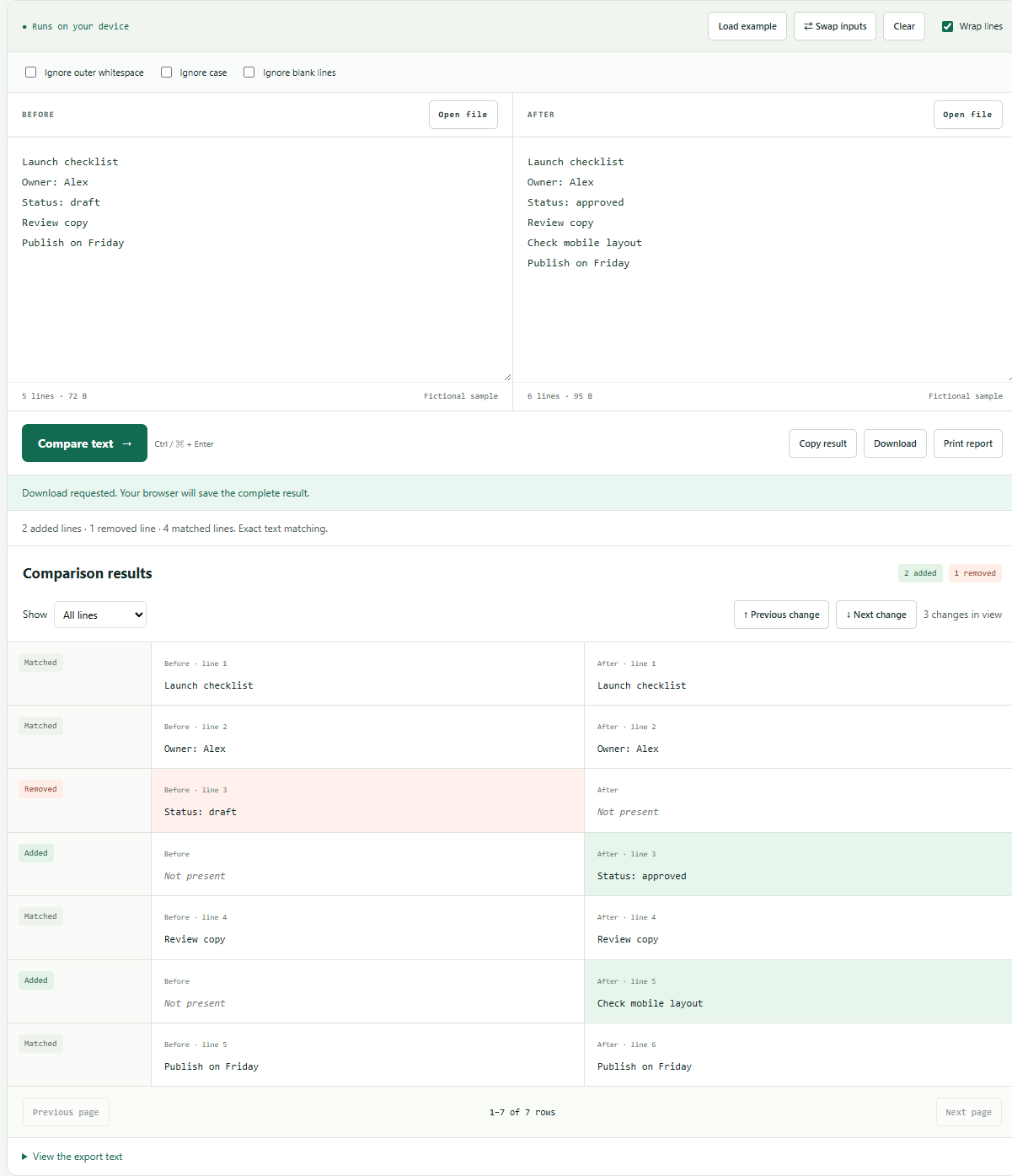
Check your result
2 added lines, 1 removed line and 4 matched lines. The status edit is a removal plus an addition. Compare your downloaded result with the expected-result file, then change one input value and run again.